
Automate User Creation in Microsoft 365 with PowerShell and Microsoft Graph API


Creating and managing users in Microsoft 365 can be a time-consuming task, especially in larger organizations. Automating this process can save valuable time and reduce the risk of errors. In this blog post, we’ll explore a PowerShell script that leverages the Microsoft Graph API to automate user creation based on details provided in a CSV file. This script is robust, and includes error handling, logging, and progress tracking, making it a professional tool for your IT toolkit.
You can download the script here from my GitHub collection – M365 User Creation Bulk Using Microsoft Graph
Prerequisites
Before we dive into the script, ensure you have the following prerequisites:
- PowerShell 5.1 or later: PowerShell is required to run the script.
- Microsoft.Graph PowerShell Module: Install this module using the following command
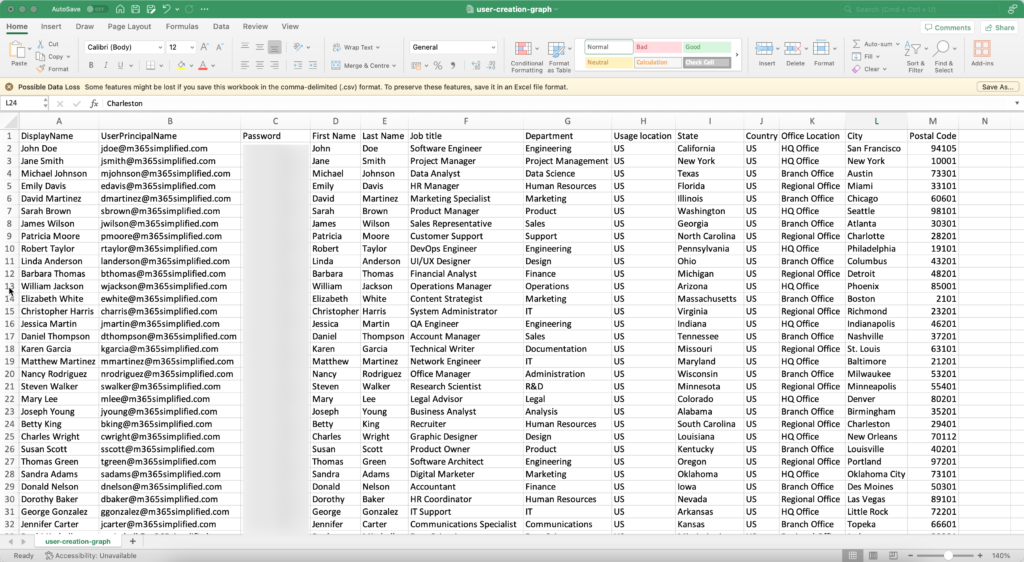
Install-Module Microsoft.Graph -Scope CurrentUserCSV File with User Details: Prepare a CSV file containing the user details. The file should have the following columns:
- DisplayName
- UserPrincipalName
- Password
- First Name
- Last Name
- Job title
- Department
- Usage location
- State
- Country
- Office Location
- City
- Postal Code
Script Overview
This PowerShell script automates the creation of users in Microsoft 365 based on a CSV file input. It uses the Microsoft Graph API to create users with specified properties. Key features include robust error handling, logging for audit purposes, and progress tracking to monitor the user creation process.
Detailed Explanation
Parameter and Import: The script starts by defining a mandatory parameter for the CSV file path using the param block. This ensures that the script receives the necessary input to run properly. Next, it imports the Microsoft Graph module, which provides the cmdlets needed to interact with Microsoft 365.
param (
    [Parameter(Mandatory=$true)]
    [string]$CSVFilePath
)
Import-Module Microsoft.Graph
Logging Function: The Log-Message function is created to handle logging. This function writes log messages with timestamps and message types to both the console and a log file. This is essential for troubleshooting and auditing.
function Log-Message {
    param (
        [string]$message,
        [string]$type = "INFO"
    )
    $timestamp = Get-Date -Format "yyyy-MM-dd HH:mm:ss"
    $logMessage = "[$timestamp] [$type] $message"
    Write-Output $logMessage
    Add-Content -Path $logFilePath -Value $logMessage
}
Connecting to Microsoft Graph: To interact with Microsoft 365, the script needs to connect to Microsoft Graph. This is done using the Connect-MgGraph cmdlet. Error handling is included to catch any connection issues and log them appropriately.
try {
    Connect-MgGraph -Scopes "User.ReadWrite.All" -ErrorAction Stop
    Log-Message "Successfully connected to Microsoft Graph."
} catch {
    Log-Message "Failed to connect to Microsoft Graph. Error: $_" "ERROR"
    throw
}
Importing Users from CSV: The script imports user data from the specified CSV file using Import-Csv. This data is then stored in the $users variable. Error handling ensures that any issues during import are logged.
try {
    $users = Import-Csv -Path $CSVFilePath
    Log-Message "Successfully imported users from CSV file."
} catch {
    Log-Message "Failed to import users from CSV file. Error: $_" "ERROR"
    throw
}
Progress Bar Setup: To provide feedback on the script’s progress, a progress bar is initialized. This progress bar is updated throughout the script to show the current status of user creation.
$totalUsers = $users.Count
$createdUsers = 0

$progressBar = @{
    Activity = "Creating Users in Microsoft 365"
    Status = "Initializing"
    PercentComplete = 0
    CurrentOperation = ""
}
Processing Users: The script processes each user in the CSV file in a loop.
For each user:
- The progress bar is updated.
- A password profile is created.
- User parameters are defined.
- The
New-MgUsercmdlet creates the user in Microsoft 365. - Successes and failures are logged.
- A 3-second pause is included after every 20 users to avoid overwhelming the system.
Additionally, users can add more parameters as per their requirements by modifying the $userParams hash table.
foreach ($user in $users) {
    try {
        $progressBar.CurrentOperation = "Creating user: $($user.DisplayName)"
        $progressBar.PercentComplete = [math]::Round(($createdUsers / $totalUsers) * 100, 2)
        Write-Progress @progressBar

        $passwordProfile = @{
            Password = $user.Password
            ForceChangePasswordNextSignIn = $true
        }

        $userParams = @{
            AccountEnabled    = $true
            DisplayName       = $user.DisplayName
            MailNickname      = $user.UserPrincipalName.Split('@')[0]
            UserPrincipalName = $user.UserPrincipalName
            PasswordProfile   = $passwordProfile
            GivenName         = $user."First Name"
            Surname           = $user."Last Name"
            JobTitle          = $user."Job title"
            Department        = $user.Department
            UsageLocation     = $user."Usage location"
            OfficeLocation    = $user."Office Location"
            City              = $user.City
            State             = $user.State
            Country           = $user.Country
            PostalCode        = $user."Postal Code"
        }

        New-MgUser @userParams
        $createdUsers++

        Log-Message "Successfully created user: $($user.DisplayName) ($($user.UserPrincipalName))"
    } catch {
        Log-Message "Failed to create user: $($user.DisplayName) ($($user.UserPrincipalName)). Error: $_" "ERROR"
    }

    Write-Output "Created $createdUsers out of $totalUsers users"

    if ($createdUsers % 20 -eq 0) {
        Start-Sleep -Seconds 3
    }
}
Final Progress Update: Once all users have been processed, the progress bar is updated to indicate completion. A final log message confirms the total number of users created.
$progressBar.PercentComplete = 100
$progressBar.CurrentOperation = "Completed creating all users."
Write-Progress @progressBar -Completed

Log-Message "Completed creating $createdUsers users out of $totalUsers users."
Write-Output "Completed creating $createdUsers users out of $totalUsers users."
Running the Script
To run the script, use the following command in PowerShell:
.\Create-M365Users.ps1 -CSVFilePath "path-to-your-csv-file.csv"PS: It is recommended to test this script in a test environment before using it in production.
You can download the script here from my GitHub collection – M365 User Creation Bulk Using Microsoft Graph
Automating user creation in Microsoft 365 can greatly enhance efficiency and reduce errors. This PowerShell script, leveraging the Microsoft Graph API, provides a robust solution with error handling, logging, and progress tracking. It’s a valuable addition to any IT professional’s toolkit.